Getting Started with EarthRanger Mobile
Download the app, log in for the first time, and get your device ready before heading into the field.
Before You Begin
Download the ER Mobile App
Use the links below or search for "EarthRanger" in your device app store
- Android: Google Play Store → EarthRanger Mobile
- Apple iOS: Apple App Store → EarthRanger Mobile
- Updating your EarthRanger Mobile app to the latest version often solves common issues. To avoid version issues in the future, enable automatic app updates on your device.
- On Android: Open the Play Store → Profile icon → Manage apps and device → Update settings → Auto-update apps.
- On iOS: Settings → App Store → toggle on App Updates under Automatic Downloads.
What You'll Need
- Your EarthRanger site name (the first part of your site URL)
- e.g. if your site is
asia.pamdas.org, your site name isasia
- e.g. if your site is
- Your EarthRanger username and password
- A stable internet connection for the initial login and sync
Installation & First Login
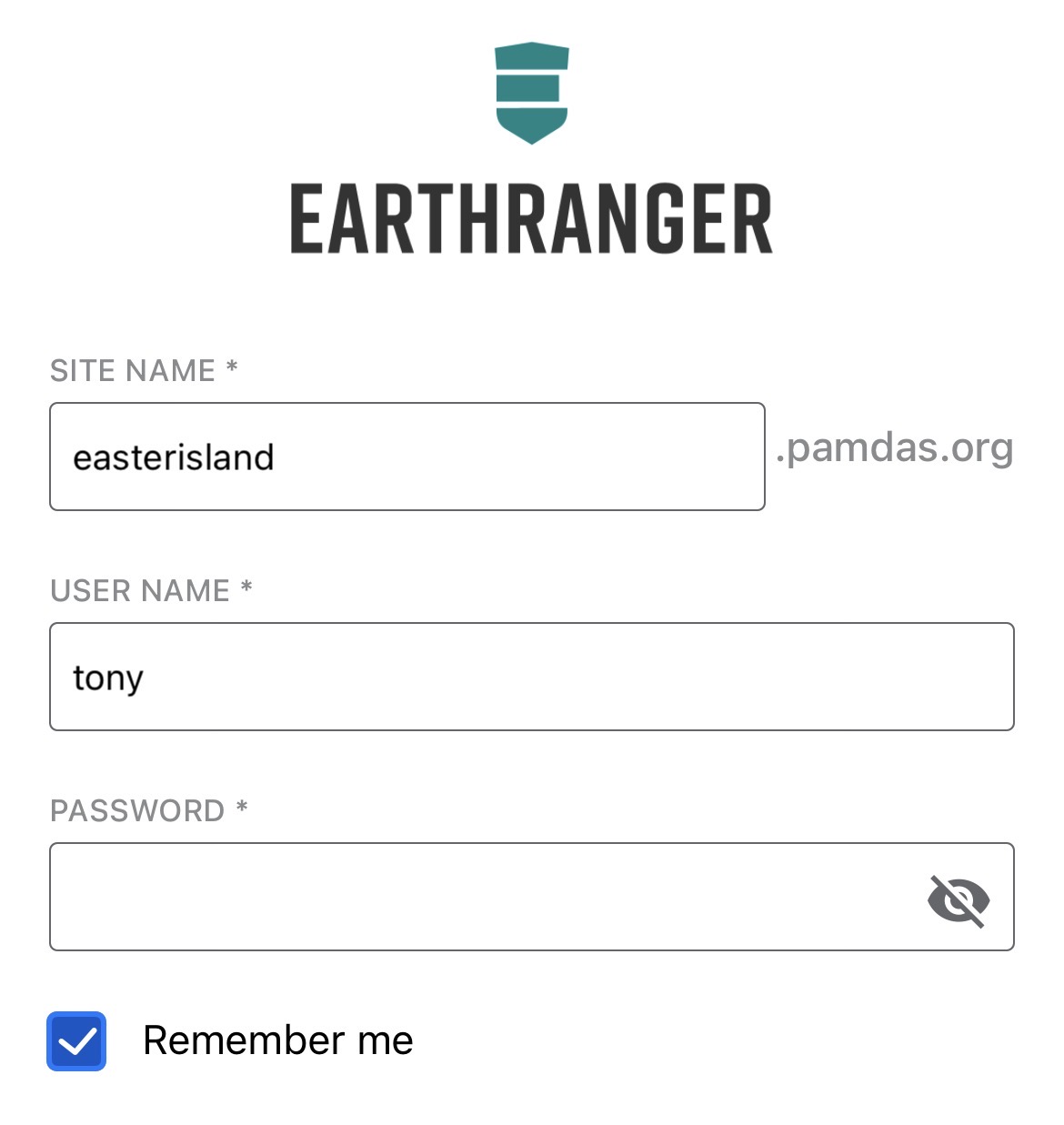
- Download and open the ER Mobile app.
- Enter your Site Name
- Enter your EarthRanger Username and Password (this is the same for both ER Mobile and EarthRanger in a browser)
- Recommended: Click Remember me
- Tap Log In
- Please wait whilst your data is synced. Please keep the app open and connected to the internet while the initial sync completes (this can take a few minutes). This downloads your site's event types, map layers, and subject configurations for offline use.
The first sync can take 3–5 minutes depending on your site's configuration and connection speed. Do not close the app during this step. You'll know it's complete when the map loads and the event categories are visible
If you see a blank map or missing event categories after logging in, the initial sync may not have completed. Stay connected to the internet and wait a few more minutes, or go to Settings and tap Sync to trigger it manually.
Essential Device Location Access
Before going into the field, ensure you give EarthRanger device location access and ensure battery optimisation apps are not activated against EarthRanger. Without this, the app may stop recording your location the moment your screen turns off.
Location Access
Set to "Allow all the time" (Android) or "Always" (iOS).
- Android: Settings → Apps → EarthRanger → Permissions → Location → Allow all the time
- Ensure Precise location is selected
- For more information see the official help documentation
- iOS: Settings → Apps → EarthRanger → Location → Always
- Ensure Precise location is selected
Battery Optimization
This is the most common cause of background tracking failure. The app must be excluded from battery-saving restrictions.
For other detailed steps as well as for specific devices please see the next article Essential Device Settings
Search your phone's Settings app for "Battery Optimization" or "EarthRanger" to locate the correct menu.
Physical Activity / Motion (Android)
Allow access when prompted. This helps the app distinguish between stationary and moving states, improving track accuracy.
Do not log out or delete the ER Mobile app unless all your data has synced. If you log out before your data has uploaded, all locally saved events and tracks will be permanently erased from your device. This data cannot be recovered.
Map Feature Layers (Offline Maps)
Important: Download your Map Feature Layers while you have internet access, before you go to the field. You cannot download layers without a network connection.
1. Turn on Map Feature Layers
- Go to Settings → Display → Map Feature Layers.
- Turn the switch on. It turns blue when enabled.
- Tap Sync in the top right of the Settings page.
2. Download features
- From the map view, tap the Map Layers button in the top right.
- Tap Features. You'll see a list of Feature Types, grouped by category (if you don't see a third Features option below Subjects, sync may not have completed yet)
- Tap the blue Download icon next to any Feature Type you want. This saves the layer to your device so it appears on the map.
3. Show or hide a layer
- Toggle a layer on or off from the same Features list to control what shows on the map.
- Turn on Map Labels from the same screen to show feature names on the map.
- Tap any feature on the map and select Zoom To to jump straight to it.
If a layer fails to download: [Confirm with your team what this looks like in the app — for example, an error icon, greyed-out state, or message — before publishing this line.]
For additional help, visit the EarthRanger Help Center or contact your site administrator.