Managing Users in EarthRanger
Create new user accounts, update existing users, manage permission sets, and deactivate accounts you no longer need.
Before You Begin
Who Can Manage Users?
Only users with both Staff status and the appropriate Permission Sets (or users with Superuser access) can create and manage other user accounts. If you don't see the options described below, contact your site administrator.
Accessing the Admin Site
- Open your EarthRanger site in a browser and add
/adminto the end of the URL- e.g.
https://sitename.pamdas.org/admin
- e.g.
- Log in with your user credentials
- Scroll to the bottom of the page and click Users
Creating a New User
-
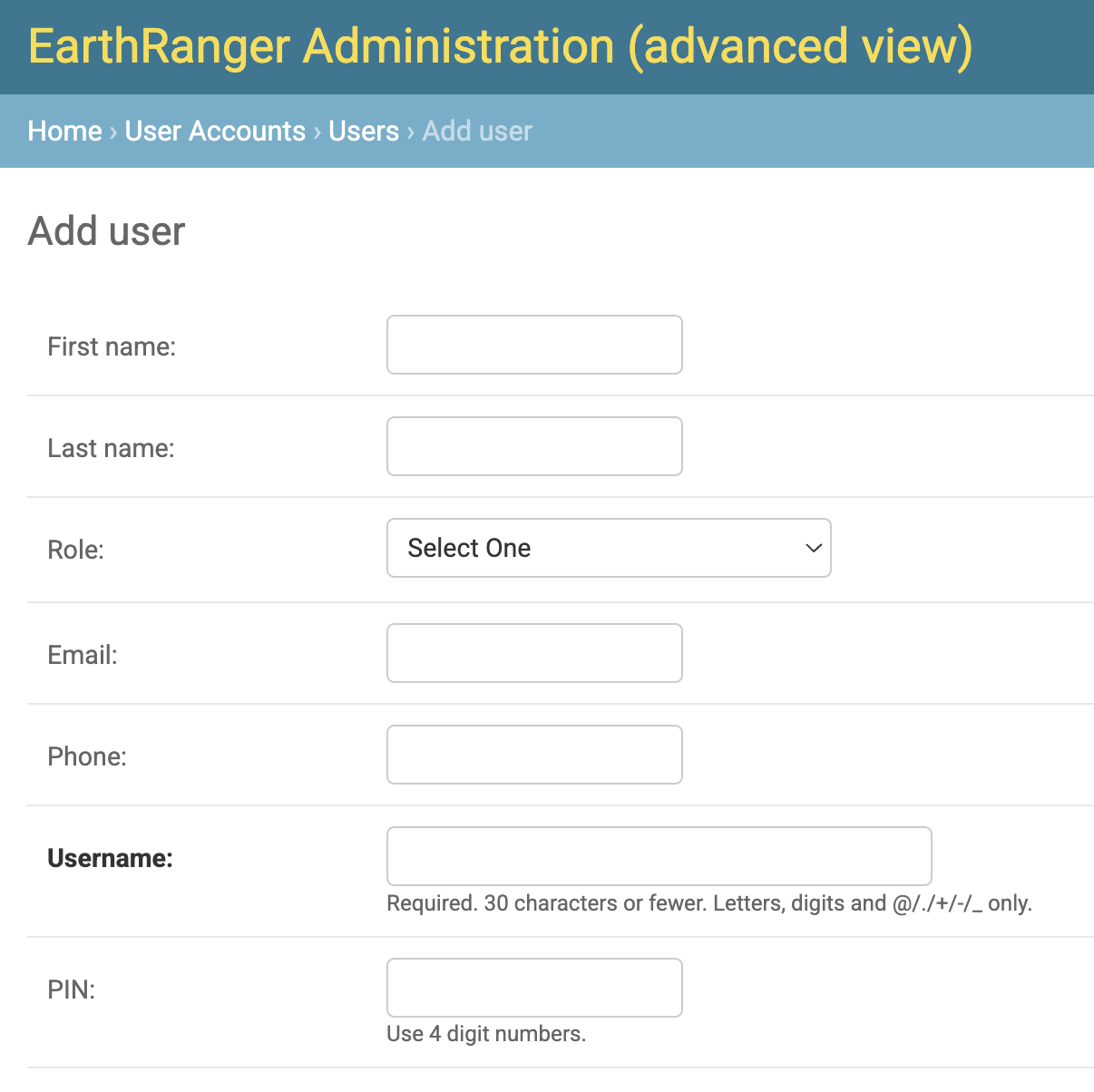
Click Add User (top right) to go to the Add User page
-
Fill in the user's Name (this is the label that will appear on their Subject if the user logs in with EarthRanger Mobile) and Username (this is what the user will use to log in)
-
Set up a password:
- With an email address (preferred) If you add the user's email address, a password reset link will automatically be sent to their email address when their user is created. You do not need to set a password for this user as they can set their own.
If they forget their password later, a new password reset email can be sent from their user page.
- Without an email address You must manually assign a password under Password. Note that if a user without an email address forgets their password, an email address will need to be added to their profile later before a reset link can be sent.
Assign Permission Sets
Under Permissions → Permission Sets, add the permission sets appropriate for this user. Ideally these would be role-based permissions that you set up previously (see section below Assigning by Role or Task)
Give only the permissions needed to do the job.
- By default, users have no permissions until they are explicitly given them
- You are in control of who has access to your EarthRanger site
- When in doubt, start with fewer permissions and expand as needed
How Permissions Work
Most features (e.g. patrols, event categories) have four independent permissions that can be assigned individually:
| Permission | Allows a user to… |
|---|---|
| Can add / create | Create or submit new things (e.g. create new events of that event type) |
| Can view / read | See things that have already been created (e.g. see existing events of that event type) |
| Can change / update | Edit things that already exist (e.g. create also edit existing events of that event type) |
| Can delete | Permanently delete existing things (e.g. delete events of that event type Note: Only if the user has "Staff" status as this is done from the EarthRanger Admin Site) |
For example, a field ranger might need create and view permissions for certain event categories, but not change or delete.
Examples of Common Permission Sets
| Permission Set | What it allows |
|---|---|
| Radio Room Operator Permissions | Create and view default event types (e.g. events in the monitoring, security and logistics event categories). |
| Patrols Permissions - No Delete | Start patrols and view others' patrols, without the ability to delete patrols. |
| View Subjects | View subjects on the map. Note: the user must also have access to the relevant Subject Group and permission to View Tracks |
| Administer All Users | Manage user accounts and adjust EarthRanger configurations. Requires Staff status to be enabled (see below). |
You can see a full list of available permission sets in the Admin Site under User Accounts > Permission Sets.
Assigning by Role or Task
Not sure which permission sets to assign? Start with what you want the user to be able to do:
| I want this user to be able to… | Required Permission Sets |
|---|---|
| Create events and start patrols | Permissions for the Event Category containing the events you want them to be able to create e.g. View Monitoring Event Permissions and Patrols Permissions - No Delete |
| See other users on ER Mobile | View Subjects + the Subject Group permission set for the relevant group (e.g. "Rangers") + a View Tracks permission set (this can be time-limited, e.g. View Tracks Last 16 Days limits a user to only view tracks for a subject within the past 16 days) |
| Manage user accounts | Administer All Users + Staff status enabled (see below) |
To see a subject (e.g. another ranger) on the map, a user needs both:
- Permission for the Subject Group — so they can see the subject itself
- Permission for a Tracks time range — so they can see how far back in time the track goes
If either permission is missing, neither the subject nor their track will appear.
Recommended Approach for Setting Up Role-Based Permissions
If you're configuring a new site or onboarding a new group of users, this workflow helps ensure users get the right access:
- List the types of users who need to use EarthRanger (e.g. field rangers, radio room operators, community volunteers)
- List the tasks each user type needs to complete
- Share your lists with the EarthRanger team — we can help build role-based permission sets tailored to your site
Example: Field Ranger A ranger conducting patrols and logging incidents within their assigned area might have:
- Events — create and view for their assigned categories (e.g. Monitoring, Security); view-only for all others
- Subjects — view subjects in their assigned subject group only; no visibility into other teams
- Patrols — full patrol functionality (create and view)
- Admin Site — no access (Staff Status off); no ability to manage users or site settings
Example: Community Volunteer A community member reporting wildlife sightings through a simplified interface might have:
- Events — create a single event type (e.g. Wildlife Sighting) only; cannot edit, delete, or view events from other users
- Subjects — no subject visibility
- Patrols — no patrol access
- Admin Site — no access
Additional Settings: Staff & Superuser Status
For most users, leave all checkboxes in their default (unticked) state.
Staff status Allows the user to log into the Admin Portal. Their access will be limited by the Permission Sets assigned above. For most users, keep this unticked.
A user with Superuser status enabled can configure anything in EarthRanger — including changing any setting and deleting data. This should be granted to only a small number of trusted users who are comfortable administering EarthRanger.
If Superuser status is enabled, you can skip Permission Set assignment as they already have full access. Keep the number of superusers to an absolute minimum to reduce the risk of configuration errors or data loss.
- Click Save to create the account
If you added a user's email address when creating the account, a password reset link will automatically be sent to their email address when their user is created. Alternatively, you can share the username and temporary password with the user directly.
Editing an Existing User
- From the user list, find the user by name or username using the search bar or filters
- Click their username to open their profile
- Update any fields as needed — name, email, permission sets, or status checkboxes
- Click Save
To reset a user's password, open their profile and click Change password (below the username field). Set a temporary password and share it with the user directly.
Deactivating or Deleting a User
Deactivating (Recommended)
Deactivating a user prevents them from logging in without permanently removing their account or data.
- Open the user's profile
- Uncheck the Active checkbox
- Click Save
To reactivate later, check Active again and save.
Deleting a User
Deleting a user account is permanent and cannot be undone. Events, patrols, and tracks created by this user will remain in the system, but their account will not. Deactivation is recommended in almost all cases.
For additional help, visit the EarthRanger Help Center or contact your site administrator.